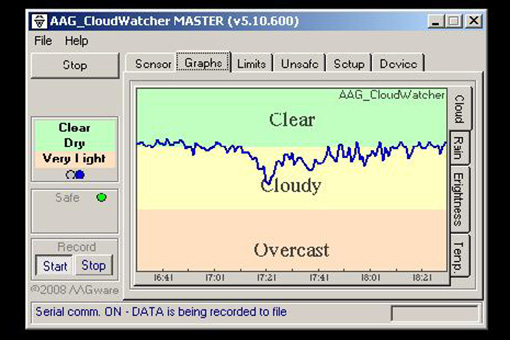
My AAG Cloudwatcher: Up and Running!
My New Cloudwatcher is Here! Automating My Observatory’s Weather
It’s here! I finally got my AAG Cloudwatcher and installed it this afternoon. This is a cloud detector that works day and night (which is, you know, essential!). It’s the perfect complement to my Lacrosse Technology WS1080 weather station for remotely checking sky conditions before opening the roof, or for quickly closing it up if an alert pops up.
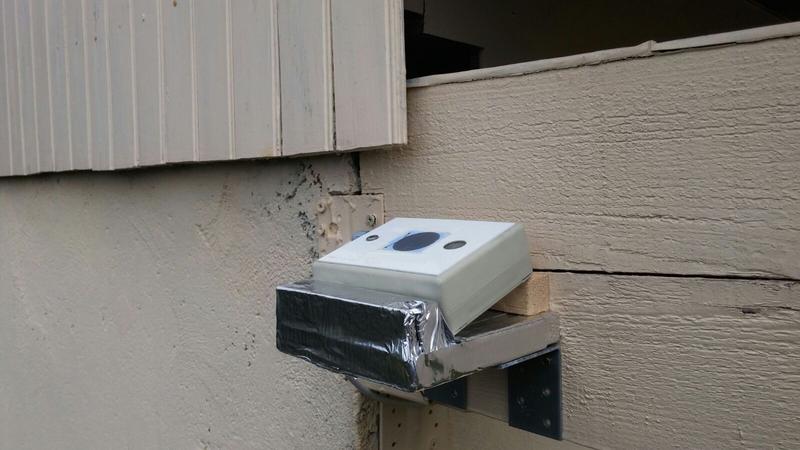
When the package arrived, I was really surprised by its size. I was expecting something bulky, but the box wasn’t much bigger than a shoebox. Turns out, Lunatico, the manufacturer (in partnership with Antonio Alberto Peres Gomes from AAGWare), just released a Version 3 of the AAG Cloudwatcher. It’s much smaller than previous versions and apparently better protected against the elements. Personally, I prefer the new version; it’s much more discreet. Not that I had much choice anyway — it was this or nothing! 😉
Installation was pretty straightforward, no major hiccups. Good thing I had a 200-12V transformer handy, as none comes supplied with the unit. Beyond the cloud detector, the AAG Cloudwatcher also packs a rain sensor, a thermometer, and a light sensor. You can set up alerts based on the state of each of these, or even combinations of them…
The unit not only connects to a computer to retrieve data but also features a relay output. This means you can trigger a chosen action in case of a weather alert (e.g., cloudy sky, rain, bright sun…). The software interface is quite user-friendly and makes it easy to get your graphs online.
After a quick email exchange with Antonio from AAGWare, here’s the complete VBS script to automatically start AAG Cloudwatcher with Windows, in minimized mode. How cool is that?
Dim oCW
set oCW = CreateObject("AAG_CloudWatcher.CloudWatcher")
oCW.Device_Start()
oCW.RecordStart True
oCW.WindowMinimize
Set oCW=nothing
To get this working, simply paste the script into a file with a .vbs extension (for example, aag-start.vbs), then create a shortcut to this file in your Startup menu.