Let's Track the ISS and Satellites!
Chasing the ISS: My First Dive into Satellite Tracking!
After watching a documentary on TV, specifically the segment featuring Thierry Legault and his stunning ISS images, I just had to give it a try! For now, I’ve started gathering the necessary software and running a few simulations. But where to begin? From my quick dive into it (and please correct me if I’m off base here!), there seem to be three main approaches:
- The Satellite Tracker software (my current pick)
- The OpticTracker software (on my list to test)
- Custom-built software (which I suspect is Thierry’s choice)
For simplicity’s sake, I’ve opted for Satellite Tracker. I might explore other solutions later, but for these initial experiments, this software seems like a perfect fit.
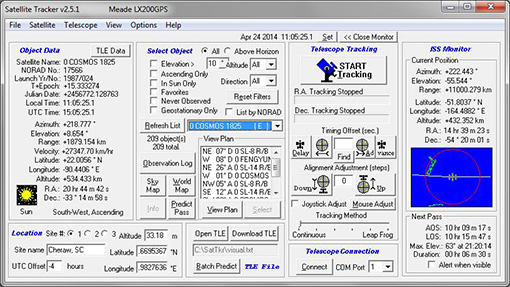
This software uses a database and your computer’s precise time (more on that in a bit!) to intercept and track satellites, including the ISS. It’s designed to work directly with Meade LX200 mounts and some Celestron models. However, to get it running with an EQ6 and EQMod, we’re going to need a bit of tinkering!
Here’s the list of software you’ll need:
- EQAscom (EQMod)
- EQModLX (EQmod)
- Optional: Planetarium software (I personally use Cartes du Ciel)
- Satellite Tracker
- Software to create a virtual serial port (I use HW VSP3)
To enable the software to accurately point and track the satellite, it’s crucial that the computer running it has the exact time. Two solutions are available for this: Either have an internet connection allowing synchronization with a time server (NTP), or have a GPS connected to your computer. For now, since I don’t have a GPS compatible with Windows 10 (which is installed on my laptop), I’m relying on NTP for time synchronization.
Once all the software is installed, it’s essential to precisely align your mount and synchronize it on multiple stars for the best results. Here’s the procedure I follow:
- Launch your planetarium software and connect EQMod.
- Launch EQModLX, connect to EQMod, and activate sidereal tracking.
- Launch HW VSP 3, select Port 999 and an available COM port number.
- Launch Satellite Tracker and connect to the virtual COM port created in the previous step. Use LX200GPS in POLAR mode.
- Search for the satellite you want to track in Satellite Tracker.
- Choose “Continuous tracking”.
- Initiate tracking!