WOL: Remotely Powering Up Your Observatory PC
Livebox Woes? Here’s How I Got Wake-on-LAN Working from the Internet
Since I didn’t want to leave my observatory computer running 24/7, I needed a way to start and stop it remotely. A few years back, I’d already used Wake on LAN (WOL) to boot up a PC on my local network without having to physically go to it. So, I figured I’d try it with the observatory PC, and it worked like a charm… at least from within my local network.
However, trying the same thing from outside (over the internet) proved to be a bit more complicated, mainly thanks to the Livebox (Orange’s router). It’s just not really designed for this kind of remote magic, and swapping it out wasn’t an option because of the sweet unlimited phone plan it comes with. But fear not! As promised, here’s the solution if you’re also wrestling with a Livebox and want to fire up a PC from the internet!
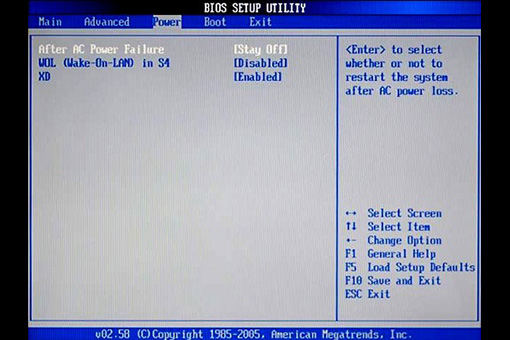
I won’t dive deep into how to use or configure WOL on a PC; there are tons of guides out there already. Just do a quick Google search for “Wake On Lan” if you need the basics. But to get the Livebox to let those “magic packets” through from outside your LAN to your observatory PC, here’s what I had to do:
- Log in to the Livebox administration interface (e.g., 192.168.1.1), using “admin” for both the username and password.
- Create a port 9 redirection to the IP of your target computer. Go to
Configuration/Advanced/Router(orConfiguration/Avancé/Routeurif your interface is in French), then create a new entry:- Service = “WOL”
- Incoming port = “9”
- Outgoing port = “9”
- Protocol = “UDP”
- Destination address = “IP_of_your_PC_to_wake_up”
- Navigate to this hidden page: configuration.adsl/arpadd.cmd?arpMac=FF:FF:FF:FF:FF:FF&arpAddr=192.168.1.123 (where
FF:FF:FF:FF:FF:FFis the MAC address of the PC you want to wake up, and192.168.1.123is its IP address). You actually have to use this hiddenarpadd.cmdfile to manually add the ARP entry linking the MAC address to the IP address of the PC you want to wake!
I tried redirecting port 9 to the broadcast address (192.168.1.255), but that just doesn’t fly with the Livebox (though it does work with proper routers).
The only drawback to this method is that you have to repeat the last step after every Livebox reboot! In my case, it’s not a huge deal because my parents are on-site and can kick off the operation if the Box crashes (about once a month, they tell me). However, I’m definitely on the hunt for a way to automate this final step!
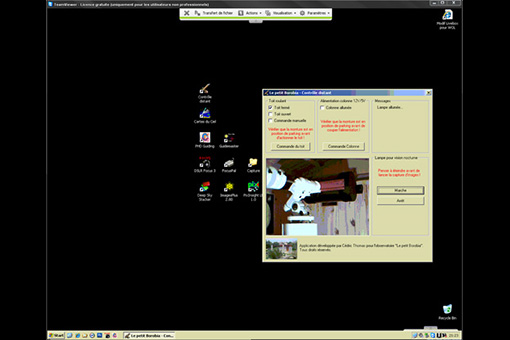
Here’s a screenshot after remotely starting the PC and then taking control with Teamviewer:
UPDATE 15/02/2011: I haven’t used WOL for over a year now, ever since I discovered a fantastic tool, the IP Power…
UPDATE 13/2015: I now use an IPX800V3 to control the observatory and the roof.